Your working day in the manager.
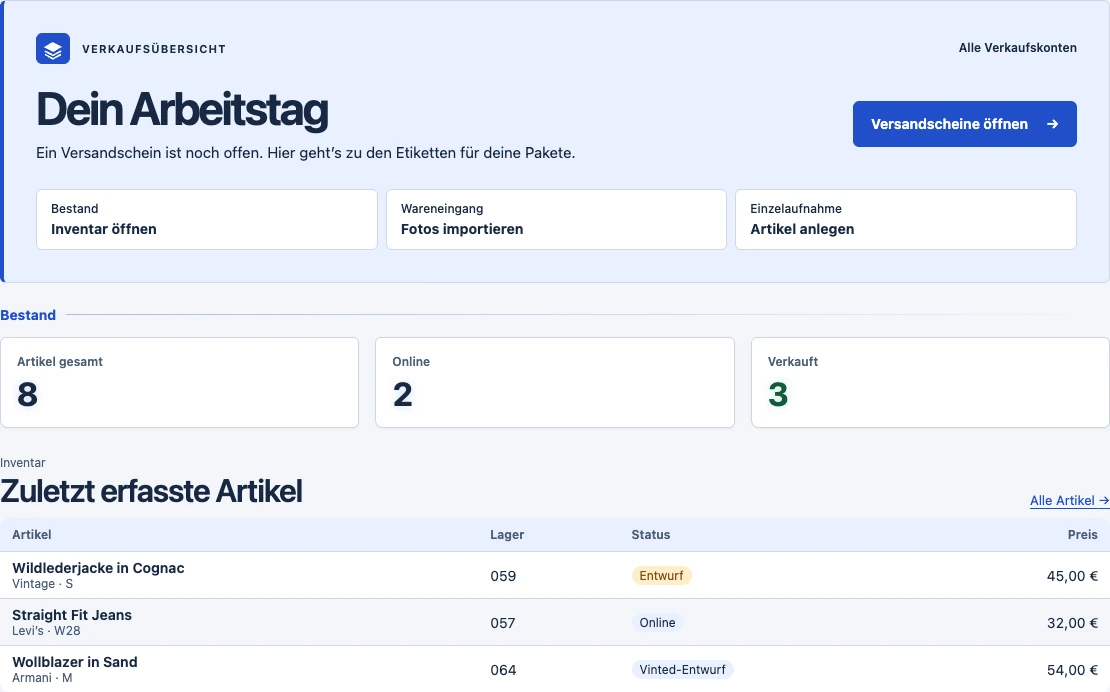
Open pending shipping labels, drafts and incoming stock directly from the dashboard.
Sign in with your manager account.

 Actual screenshot · Sample data Review an offer on your phone
See what needs doing today from your desk. When you switch to Vinted, the Chrome extension is there in the same browser.
Open pending shipping labels, drafts and incoming stock directly from the dashboard.
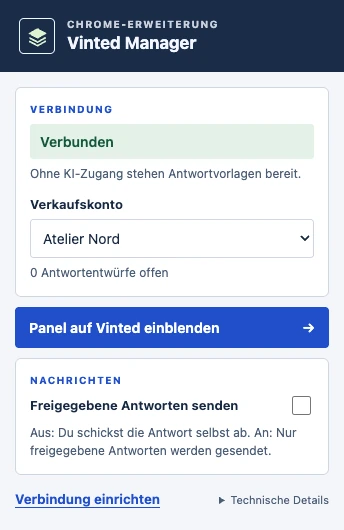
Check your connection and pending reply drafts at a glance. Choose an account and open the panel on Vinted.
Actual screenshots with sample data · Select an image to enlarge it
10 actual screenshots with sample data. Choose a step to explore.
Swipe across the tabs to see more screenshots.
VIEW 01 / 10
Search by title, brand or status. The stock reference takes you to the right shelf.
Full-size image
VIEW 02 / 10
Check which photos belong together before creating drafts. Here the manager separates two photo sets using a time gap. If configured, AI can also recognise the labelled boxes.
Full-size image
VIEW 03 / 10
The extension reports which form fields are filled in. In this example, the title, size and parcel size are correct. The colour still needs checking. Review the draft before publishing.
Full-size image
VIEW 04 / 10
Print QR labels with the title, size, price and stock reference. Scan a label at the shelf to open the item page in the manager.
Full-size image
VIEW 05 / 10
The account overview shows item counts and status for each seller account. Switch between inventories at the top of the manager.
Full-size image
VIEW 06 / 10
The mobile inbox shows the offer, item and minimum price together. Open the Vinted conversation to accept, decline or make a counteroffer.
Full-size image
VIEW 07 / 10
Group items from a bundle into one order and tick them off as you pack. The packing list and shipping label stay with that order.
Full-size image
VIEW 08 / 10
Check the crop of the original label and the 4×6-inch preview. Select the labels you need and open the combined print view.
Full-size image
VIEW 09 / 10
When model photos are enabled, choose an item, a reference photo and an image type. You can review and approve the generated image. This screenshot uses a sample jacket.
Full-size image
VIEW 10 / 10
Compare revenue and profit. The monthly overview shows how much you sold and when.
Full-size image
From incoming stock to reporting. Explore the work areas below. Some features require separate activation or setup.
Record photos, size, condition, stock reference, purchase price and other costs for each item. QR labels help you find items on the shelf.
Split batches of photos into items. AI suggests a title, description and price. The Chrome extension fills in the draft for you to review and publish.
Keep your seller accounts separate. When chat is enabled, use reply templates, review drafts and compare offers with your minimum price.
Import sales emails and PDF labels from your inbox. Group bundle purchases, tick off packing lists and print selected 4×6-inch labels in a batch.
Import and export inventory via CSV and download the annual report. See revenue, profit and bestsellers in analytics.
When enabled, create AI model photos, track favourites and use the Snipe bot to find matching offers. Personal alerts can also arrive as browser notifications.

Set up your account in the manager and connect the extension in your Chrome profile.
Upload your pictures. Review the photo groups and suggested item details. The marked box photo stays in inventory. You can publish the finished draft yourself on Vinted.
Connect your inbox. After a sale, find the item, stock reference and matching shipping label in the manager.
Choose how many new items you list. The monthly plan includes AI photo analysis, inventory, stock management and CSV export.
You can also choose a volume between these examples. Your fixed price stays the same if you use less. Taxes are shown before payment.
Calculate your planSelect the right seller account in the manager. Use a separate Chrome profile per account to keep sign-in, cookies and account selection separate. Services that access Vinted in the background need a proxy configured for that account.
You need Chrome on your computer to fill in a Vinted draft. Email fetching and background jobs run where the manager is installed. For a local installation, keep that machine on for scheduled checks.
Setup supports Gmail, iCloud, GMX, WEB.DE and T-Online. Using IMAP, the manager can match sales emails and attached shipping labels to the right account.
In settings, choose alerts for each device and enabled feature, such as buyer messages, offers, sales or labels. On iPhone, open the manager from the Home Screen to use alerts. A generic notification leads to the details after sign-in.
Enter your item count per month or per day. The calculator uses 30 days for a daily count. The smallest plan includes 50 AI drafts. You see your price before signing up.
For a paid subscription, open your monthly plan in the manager. Select “Invoices, payment methods and cancellation” to enter the customer portal and see when your subscription ends.